


Organizations
An organization is a shared workspace in Reflex. It contains your projects and their apps, the people who work on them, the roles that control what each person can do, and your billing and credits.
Every project and app belongs to an organization, in both Reflex Build and Reflex Cloud. Your account starts with one, created the first time you sign in.
Organizations, projects, and apps
Reflex has three levels.
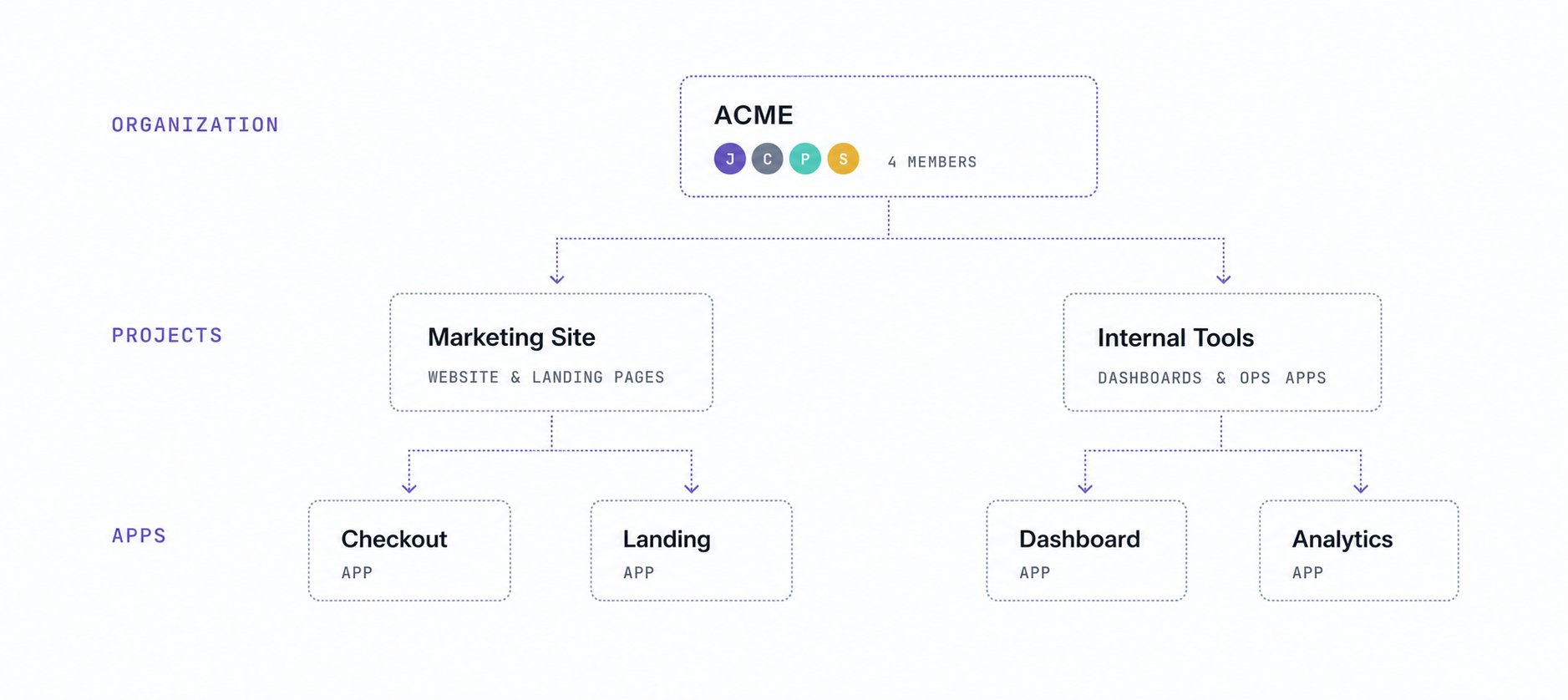
- Organization: the top level, usually one per company. Members, teams, organization roles, machine identities, tokens, usage, billing, verified domains, and single sign-on are set here.
- Project: a group of related apps within an organization, with its own members, roles, and settings. Teams commonly use one project per product or client.
- App: an application you build and deploy. Each app belongs to a project.
People join the organization first, then get access to individual projects. This keeps one workspace usable for a large team without giving everyone access to everything in it.
Where settings live
Settings live at either the organization or the project level.
Creating an organization
Most teams need only one organization. Create a second when you want fully separate members, billing, and projects, for example to keep two companies or clients apart.
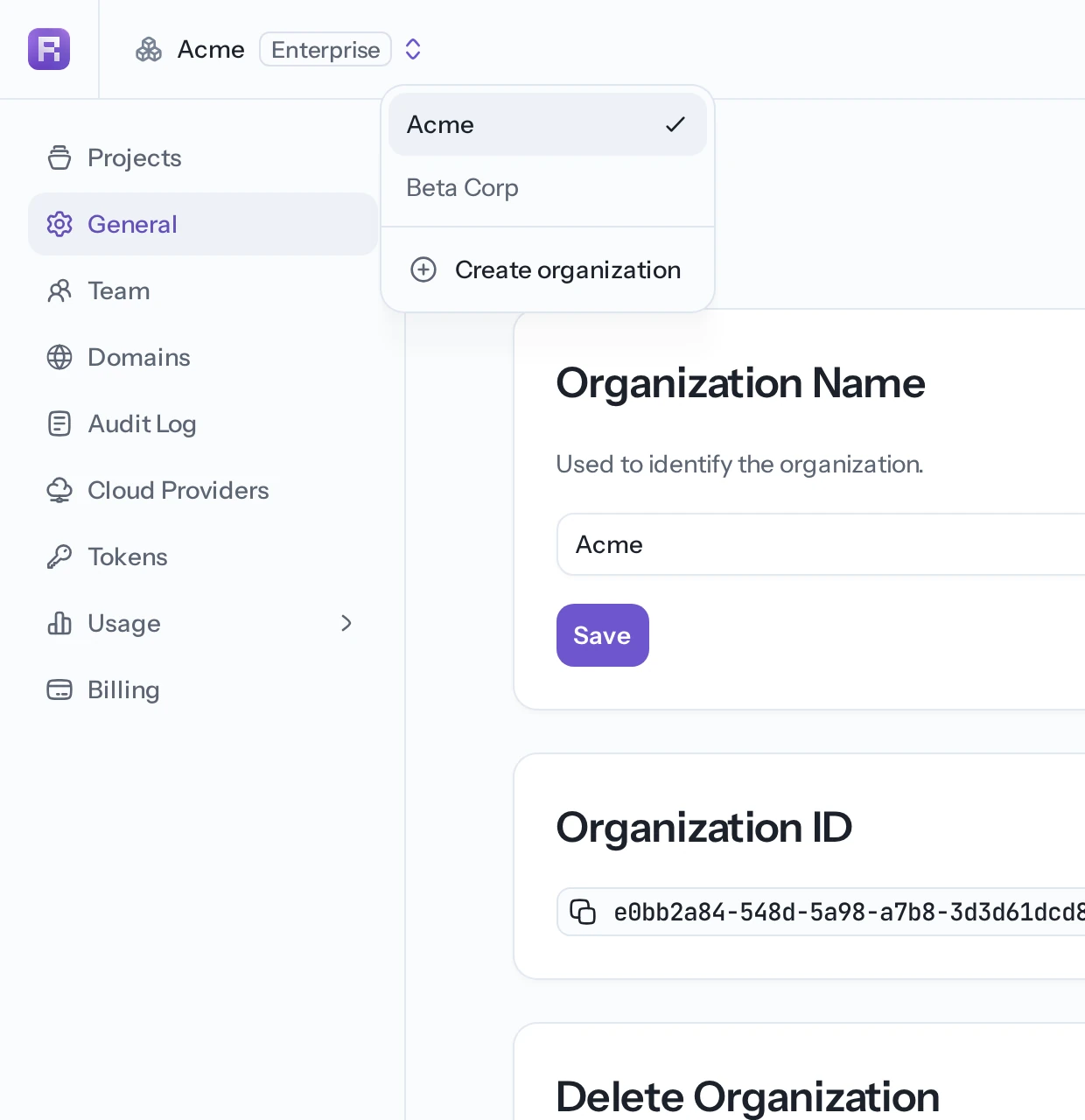
Open the organization switcher at the top of the page, choose Create organization, name it, and confirm.
Switching organizations
If you belong to more than one organization, use the organization switcher to move between them. The projects, members, billing, and settings you see always belong to the selected organization. If a project or teammate appears to be missing, check that the right organization is selected.
Name and ID
The General tab of your organization's settings shows two fields:
- Organization name: the display name used throughout Reflex. Admins can change it at any time.
- Organization ID: a fixed identifier used by the CLI and API. You can copy it, but not change it.
Leaving an organization
Use Leave organization in General when you no longer need access. You immediately lose access to its projects and apps.
An organization must always have at least one admin. If you are the only admin, use Hand off admin access to promote another member before leaving. Review the new admin's identity and responsibilities before transferring control.
Deleting an organization
Deleting an organization is permanent and removes every project inside it.
Open General in the organization sidebar and use Delete organization. You'll be asked to type the organization's name to confirm.
Plans
Verified domains, single sign-on, bring-your-own-cloud, and inviting teammates are Enterprise features, and your seat count depends on your plan. When a feature isn't part of your plan, Reflex shows a note with a link to contact sales.
In this section
Getting your team in:
- Members & seats — add people and manage seats.
- Teams — group members and grant project access once.
- Provisioning — synchronize membership through SCIM.
- Service accounts — give CI, scripts, and integrations an organization-owned identity.
- Tokens — create organization-scoped credentials with limited project and resource access.
- Verified domains & auto-join — let teammates join by email domain.
- Single sign-on (SSO) — sign in through your identity provider.
Controlling access:
- Roles & permissions — what each organization and project role can do.
- Managing project access — add members to specific projects.
- Custom project roles — define project access with the exact permissions you need.
Governing and organizing:
- Usage — review AI credits and Cloud resources.
- Project approvals — require sign-off before deployments or project membership changes.
- Audit logs — review who did what.
- Moving projects & apps — move work between projects and organizations.
- Bring your own cloud — run apps on your own infrastructure.