


Code Workspace
Open Code in an app to work directly with its generated source. Use it when you need more detail than Preview or the agent's summary provides.
Find and inspect files
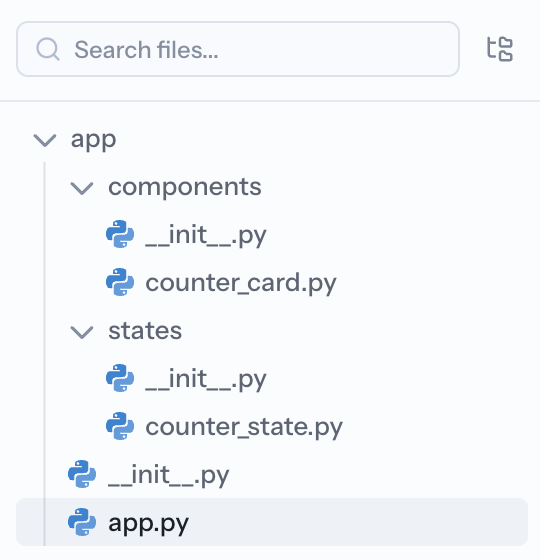
Use the file tree and search to find a path, then select it to open the editor. Changed-file indicators and diff counts show where a generation added, removed, or modified code. Open the diff view to compare the generated change before continuing.
The Terminal and Debug panels help you inspect the running app and diagnose failures. Git controls show the connected repository workflow when the app uses one.
Edit files
Manual code editing is available on paid plans and requires edit access to the app:
- Wait for the current generation to finish.
- Open a file and make the change.
- Select Save, or press
Cmd+Son macOS orCtrl+Son Windows and Linux. - Return to Preview and test the affected workflow.
Depending on your access, the file tree also lets you create, rename, delete, and upload files. These operations change the app source, so check the selected path before confirming them.
Lock files
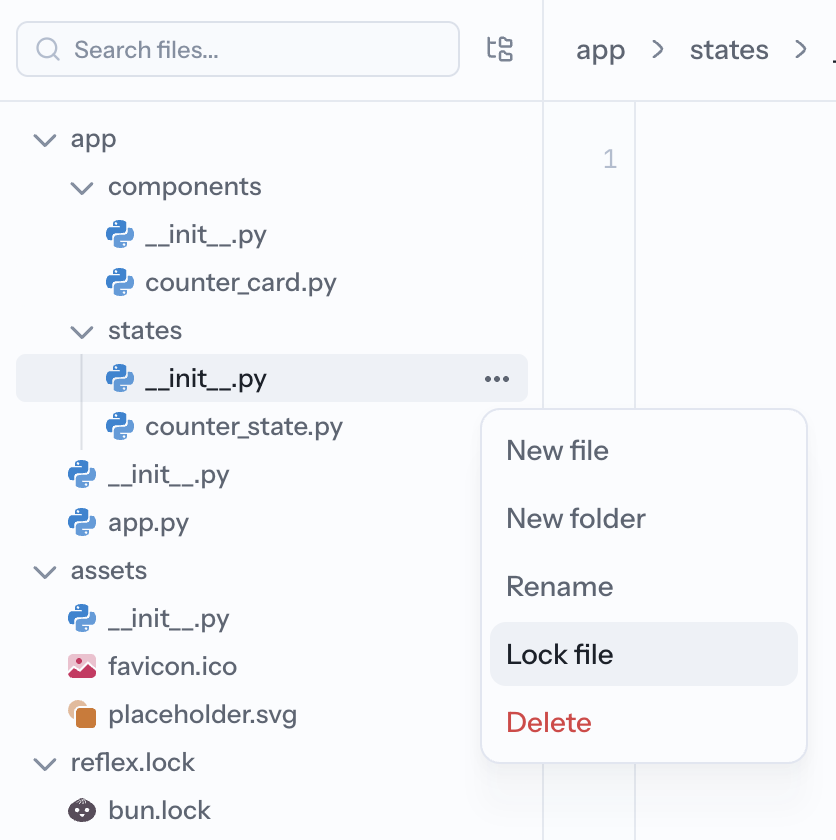
Lock a file when the agent must preserve your manual implementation during later generations. The agent skips locked files until you unlock them.
Use locks sparingly. A lock can prevent the agent from completing a change that depends on that file, so unlock it when the protected implementation no longer needs to be preserved.
For work outside Builder, connect a Git repository or download the app. Avoid editing the same files in two places at once.
Related
- Code and Review — choose between source-level work and annotated visual feedback.
- Generation Controls & Collaboration — understand app edit locks and concurrent work.
- Files — attach documents and structured data to a prompt.