


Okta Auth Manager Integration
The Okta Auth Manager Integration allows your app to authenticate users through Okta. This integration provides secure OAuth 2.0 / OIDC authentication and supports multi-tenant environments with customizable access policies.
What You Can Do
With Okta, your app can:
- Authenticate users securely through Okta’s identity platform.
- Enable SSO for enterprise users.
- Manage user roles, groups, and access permissions.
- Protect sensitive data and actions with OAuth 2.0 and OpenID Connect (OIDC).
- Integrate with other identity workflows like MFA or adaptive policies.
Step 1: Set Up Okta OIDC App
Before connecting, you need to create an OIDC application in the Okta Admin Console:
1 - Go to Okta Admin Console → Applications → Applications
2 - Click Create App Integration
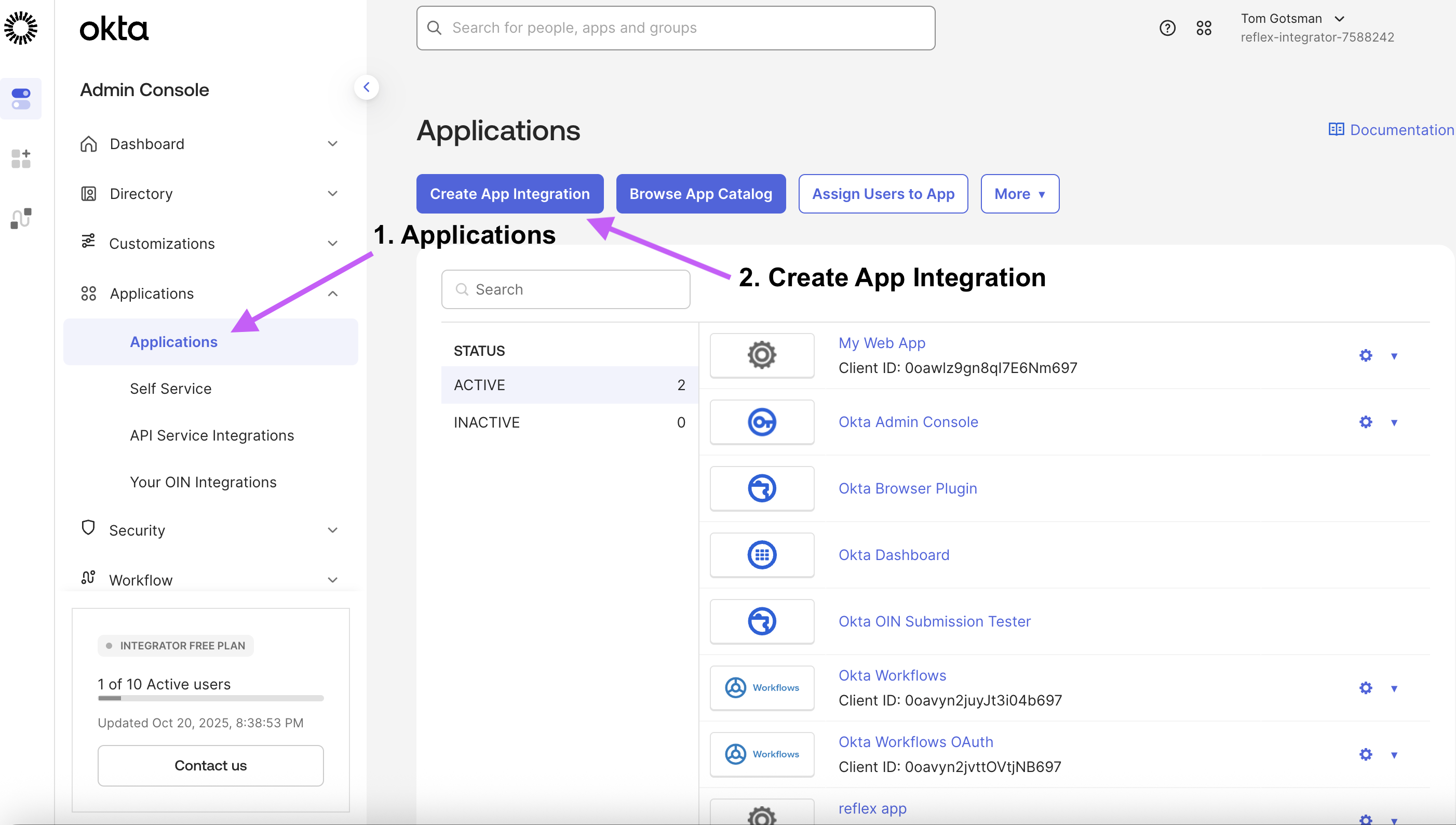
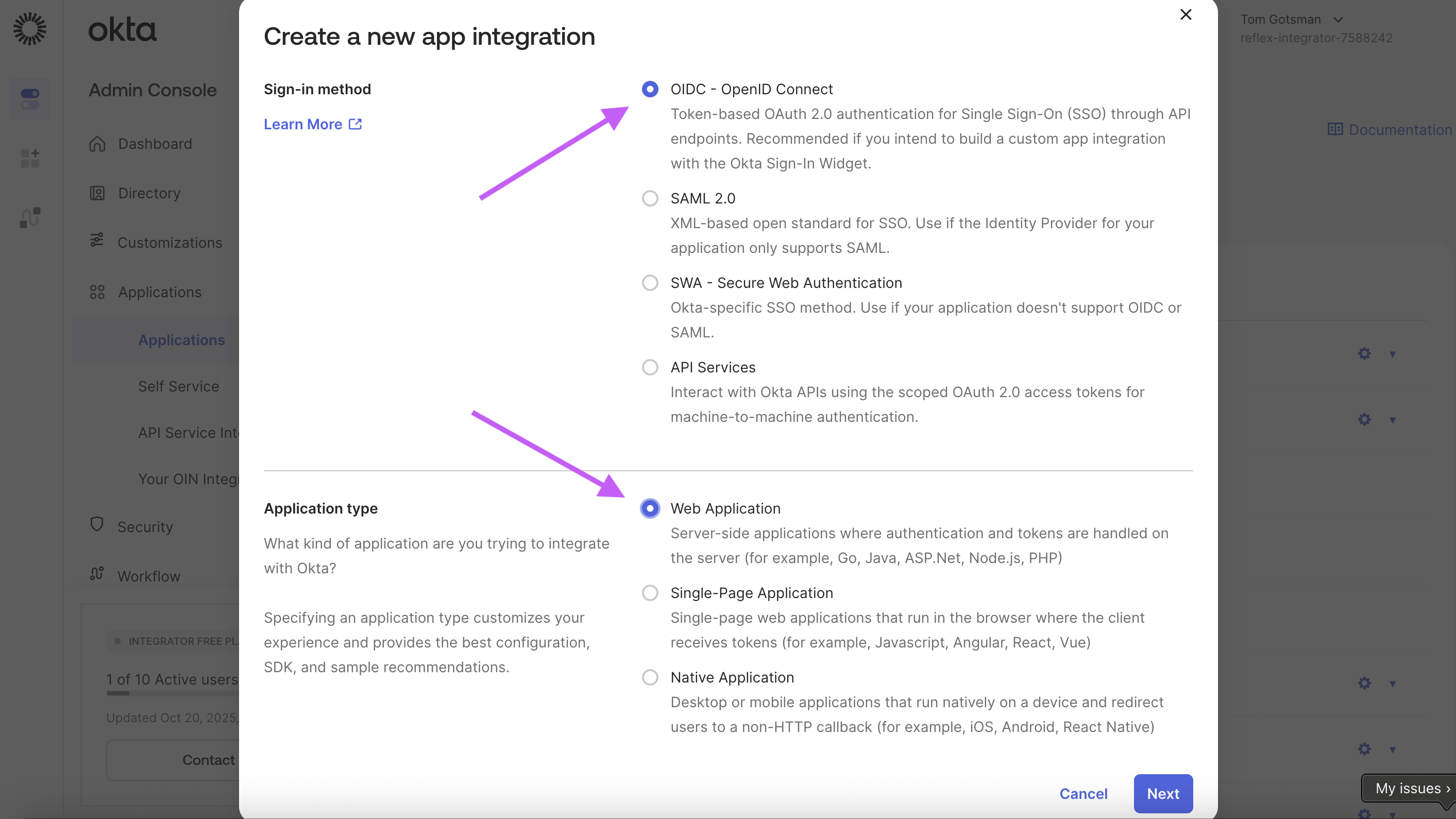
3 - Select OIDC – OpenID Connect and choose Web Application
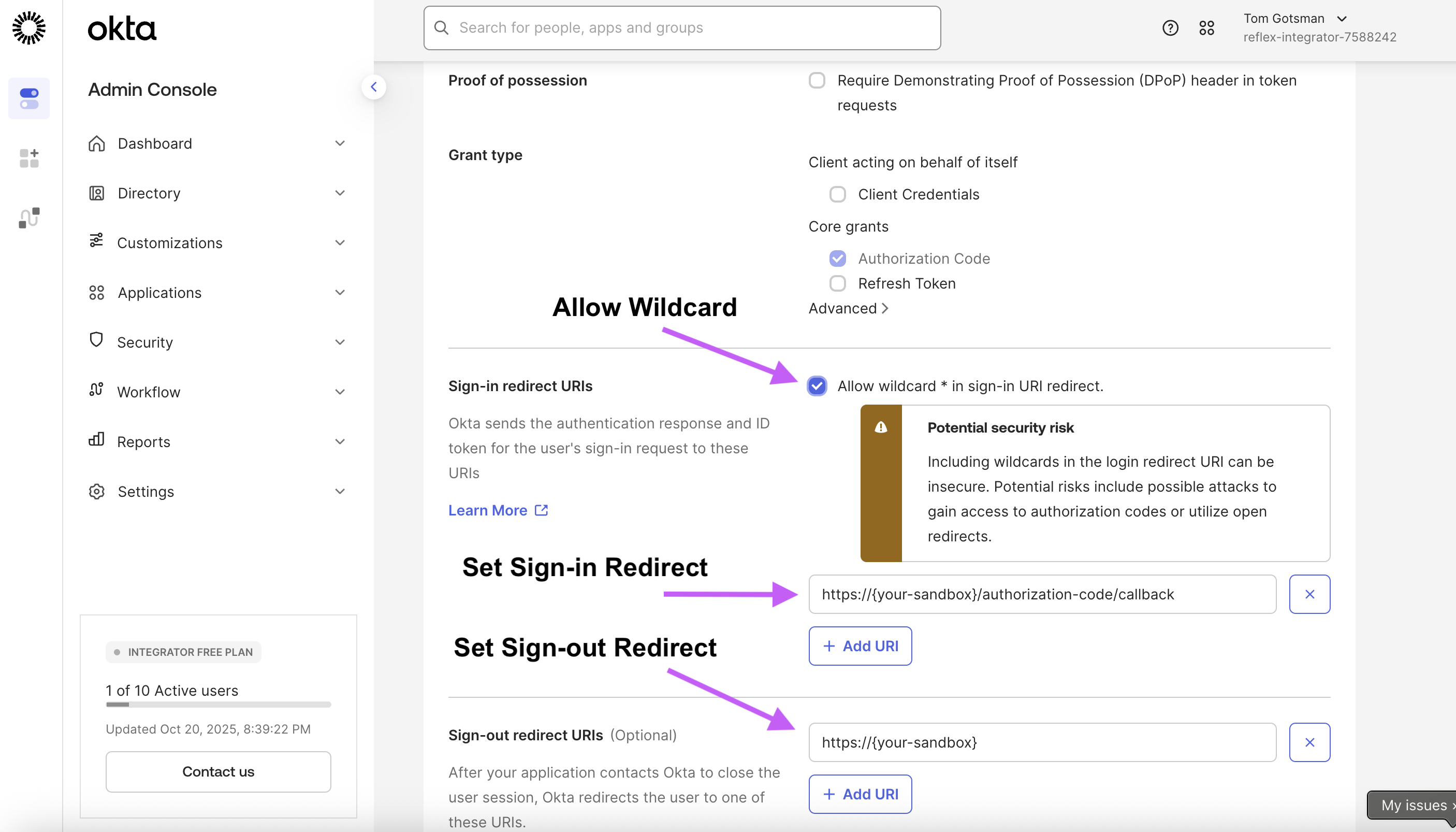
4 - Configure your app settings:
- Allow wildcard * in sign-in redirect URIs
- Sign-in redirect URIs found in the Okta Auth Manager integration settings in AI Builder:
https://{your-sandbox}/authorization-code/callback - Sign-out redirect URIs:
https://{your-sandbox} - Assign to the correct Group or Everyone depending on your access control
5 - Save the app integration.
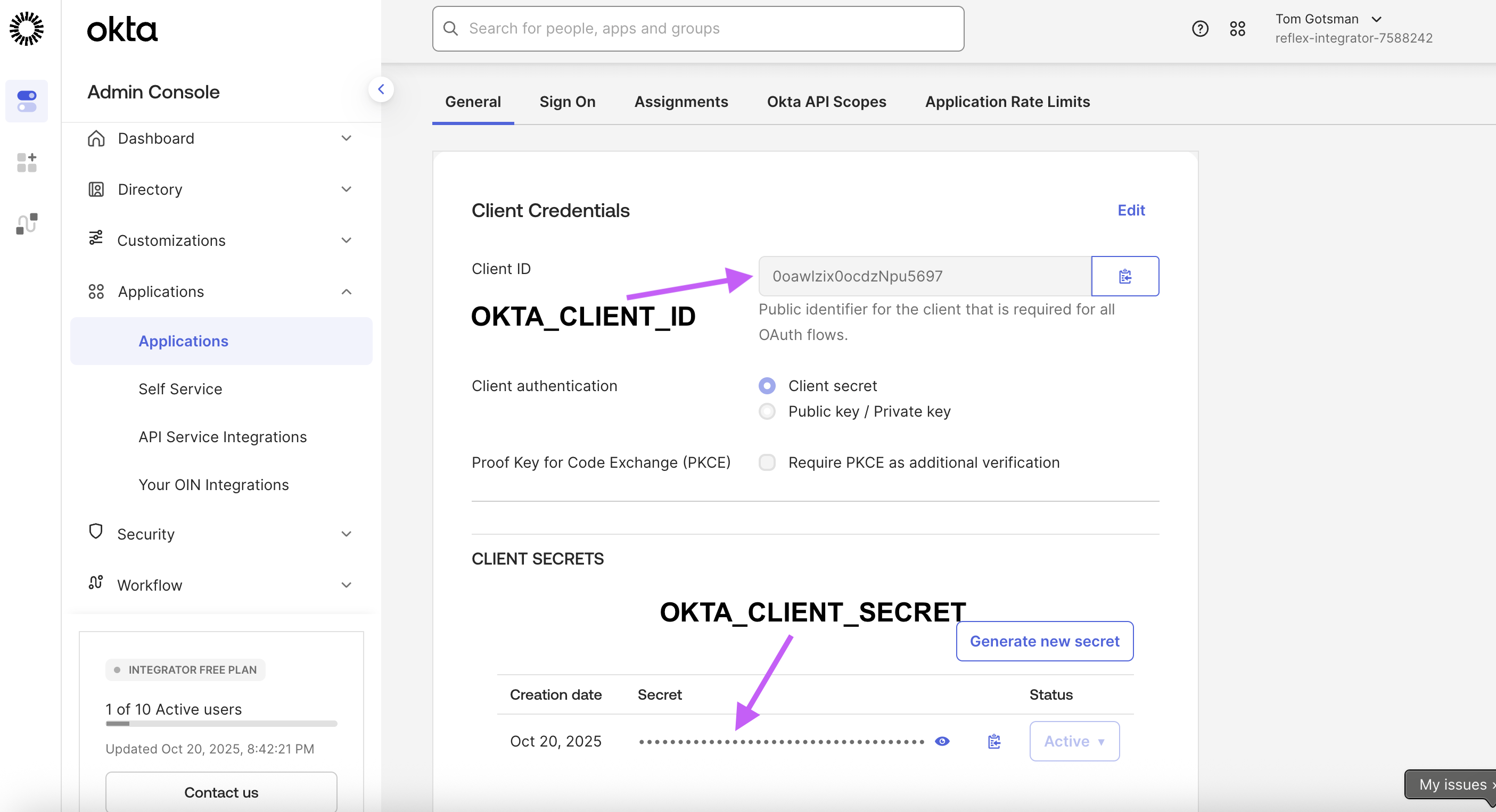
6 - Copy your Client ID (OKTA_CLIENT_ID) and Client Secret (OKTA_CLIENT_SECRET) from the app settings.
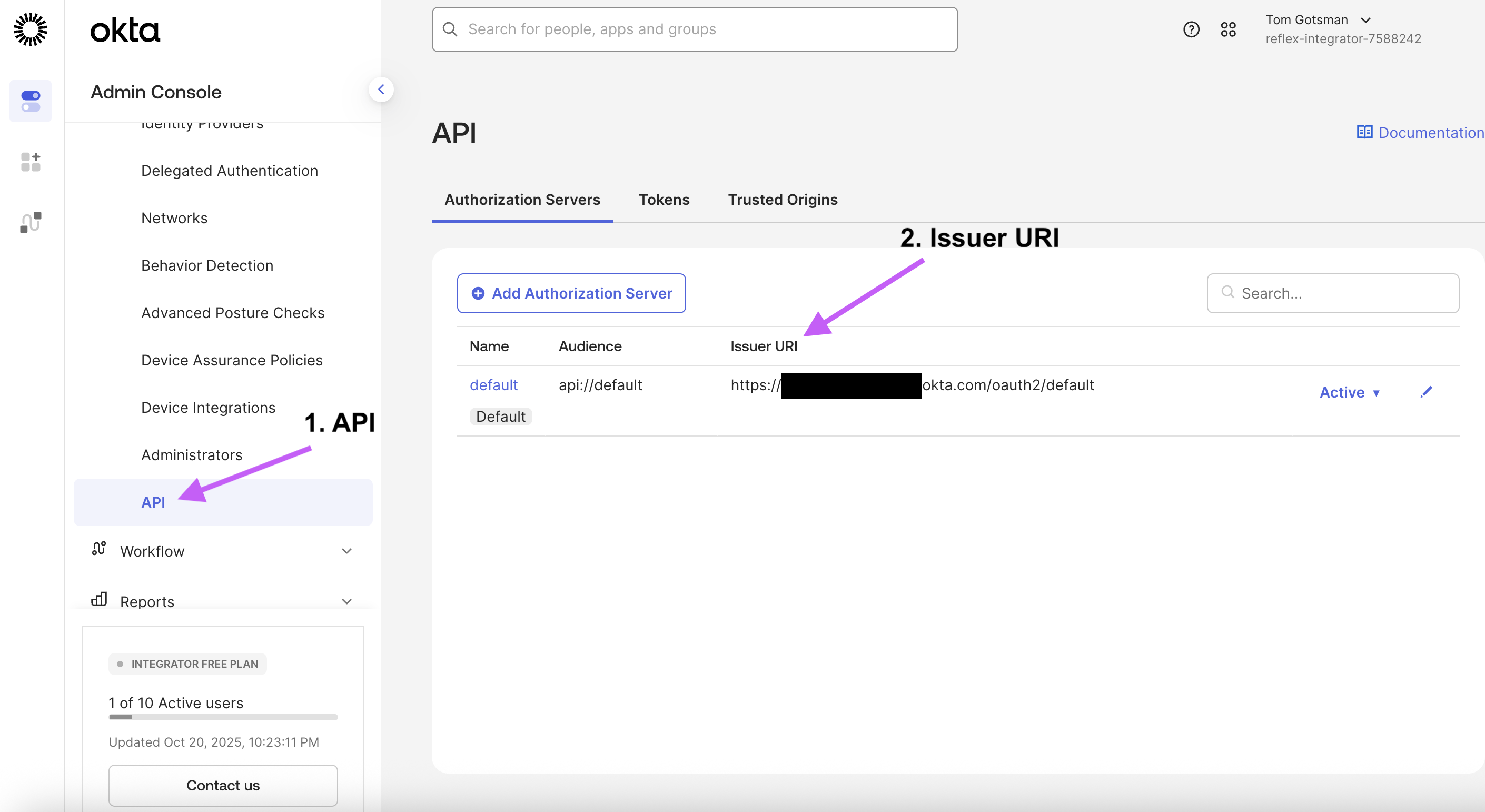
Step 2: Finding Your Okta Issuer URI
- In the Okta Admin Console, go to Security → API → Authorization Servers
- Click on the default server and copy the Issuer URI.
- Remove the trailing
/oauth2/defaultfrom the URI to get your Okta Issuer URI (OKTA_ISSUER_URI).
Example:
If your Issuer URI is https://{yourOktaDomain}.okta.com/oauth2/default
Use https://{yourOktaDomain}.okta.com
Note: Always use separate Okta apps for dev, staging, and production environments to avoid mixing credentials.
Step 3: Configure the Integration
- Go to the Integrations section in your app settings by clicking
@and then selecting the Integrations tab. - Click Add next to Okta Auth Manager.
- Fill in the credential fields:
- Enter your Okta Client ID
- Enter your Okta Client Secret
- Enter your Okta Issuer URI
- Click Connect to save the integration.
Your app can now authenticate users through Okta using the secure OAuth 2.0 / OIDC flow.