


Verified Domains & Auto-Join
Inviting people one at a time works for small teams. For a whole company, verify your email domain (such as acme.com) so anyone with a matching address joins the organization automatically, without an individual invitation.
Verified domains are managed from Domains in the organization sidebar and are part of the Enterprise plan.
How it works
- Claim a domain your company owns.
- Prove ownership by adding a DNS record.
- Once verified, people with an email on that domain join automatically, including both new sign-ups and existing Reflex users.
Claiming and verifying a domain
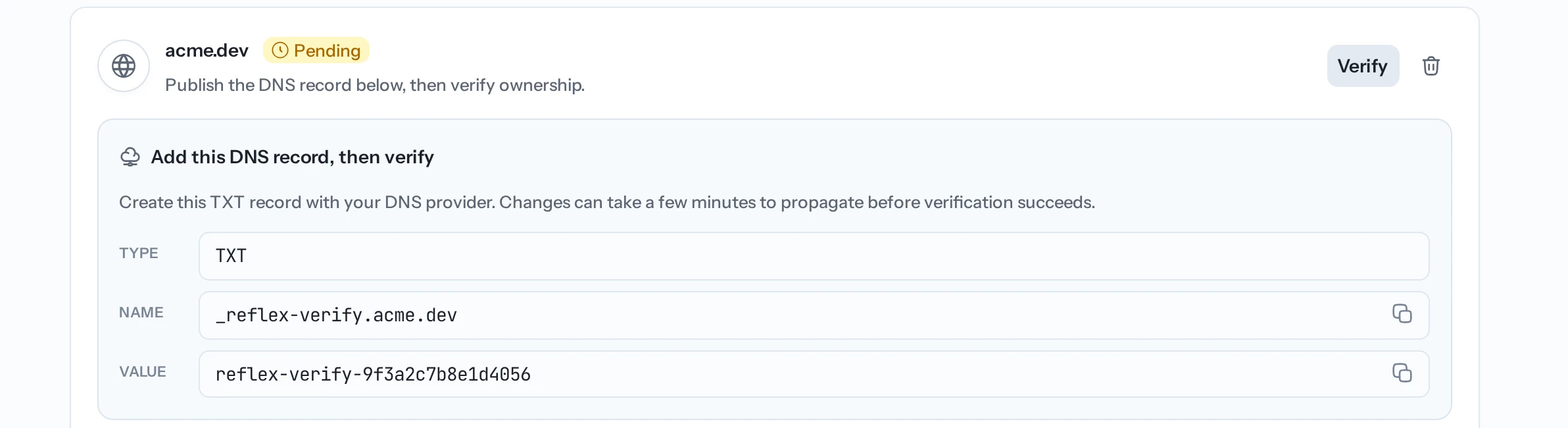
Select Add domain and enter the domain to claim, such as acme.com. It appears with a Pending status and a set of DNS instructions.
To verify ownership, add the TXT record shown (its Type, Name, and Value) with your DNS provider, where you manage your domain. Then return and select Verify.
Only one organization can verify a given domain.
Auto-join
Once a domain is verified, auto-join is on by default:
- New people who sign up with an email on the domain join the organization automatically.
- Existing Reflex users with a matching email are added too.
Turn auto-join off with the toggle to stop adding new people while keeping the domain verified. Use this to pause onboarding without removing the domain.
Syncing existing members
If a domain shows Sync incomplete, some existing users on it haven't been added yet. Select Sync members to add them; it's safe to run at any time.
When you're out of seats
If auto-join would add someone but the organization has no free seats, they go into the Awaiting a seat queue and hold no seat until an admin activates them. See Members & seats to activate them.
Removing a domain
Select the delete icon on a domain's card and confirm. New people on that domain stop joining automatically, but existing members keep their access. You can claim the domain again later.
Domains and single sign-on
A verified domain is also required for single sign-on. To have your team sign in through your identity provider, verify the domain first, then set up SSO. The Single sign-on card sits on this page, below your domains.
Related
- Single sign-on (SSO) — sign in through your identity provider.
- Members & seats — seats and the awaiting-a-seat queue.