


Reflex Cloud - Quick Start
So far, we have been running our apps locally on our own machines. But what if we want to share our apps with the world? This is where the hosting service comes in.
For hosting options and configuration guides, see the Reflex Cloud overview.
Quick Start
Reflex’s hosting service makes it easy to deploy your apps without worrying about configuring the infrastructure.
Prerequisites
- Hosting service requires
reflex>=0.6.6. - This tutorial assumes you have successfully
reflex initandreflex runyour app. - Also make sure you have a
requirements.txtfile at the top level app directory that contains all your python dependencies! (To create arequirements.txtfile, runpip freeze > requirements.txt.)
Authentication
First run the command below to login / signup to your Reflex Cloud account: (command line)
reflex loginYou will be redirected to your browser where you can authenticate through Github or Gmail.
Find the Deploy Command
Open Deployments in the project sidebar. If the project has no deployments yet, select How to deploy. This page shows the available workflows: one-click deployment from the Builder, deployment from the CLI, and deployment to a cloud provider.
For the CLI workflow, copy the project-specific reflex deploy --project ... command.
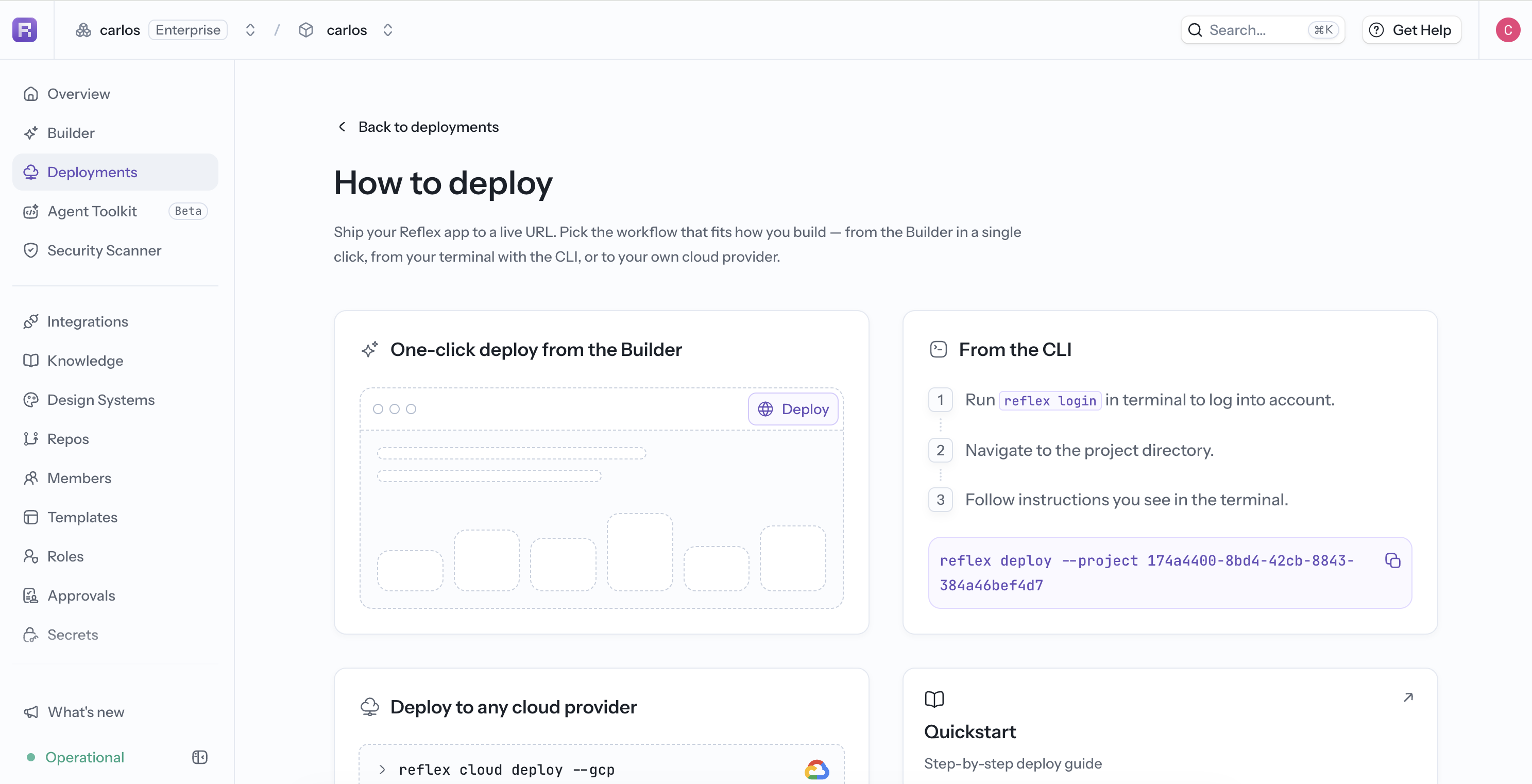
Deployment
Now you can start deploying your app.
From your project directory, where you normally run reflex run, run the command copied from the dashboard. It looks similar to:
reflex deploy --project 2a432b8f-2605-4753-####-####0cd1####The command is by default interactive. It asks you a few questions for information required for the deployment.
- The first question will compare your
requirements.txtto your python environment and if they are different then it will ask you if you want to update yourrequirements.txtor to continue with the current one. If they are identical this question will not appear. To create arequirements.txtfile, runpip freeze > requirements.txt. - The second question will search for a deployed app with the name of your current app, if it does not find one then it will ask if you wish to proceed in deploying your new app.
- The third question is optional and will ask you for an app description.
That’s it! You should receive some feedback on the progress of your deployment and in a few minutes your app should be up. 🎉
For detailed information about the deploy command and its options, see the Deploy Command Reference and the CLI Reference.
If you go back to the Cloud UI you should be able to see your deployed app and other useful app information.