


Templates
Templates give you a working starting point that you can adapt with prompts or direct code edits.
Use a Template
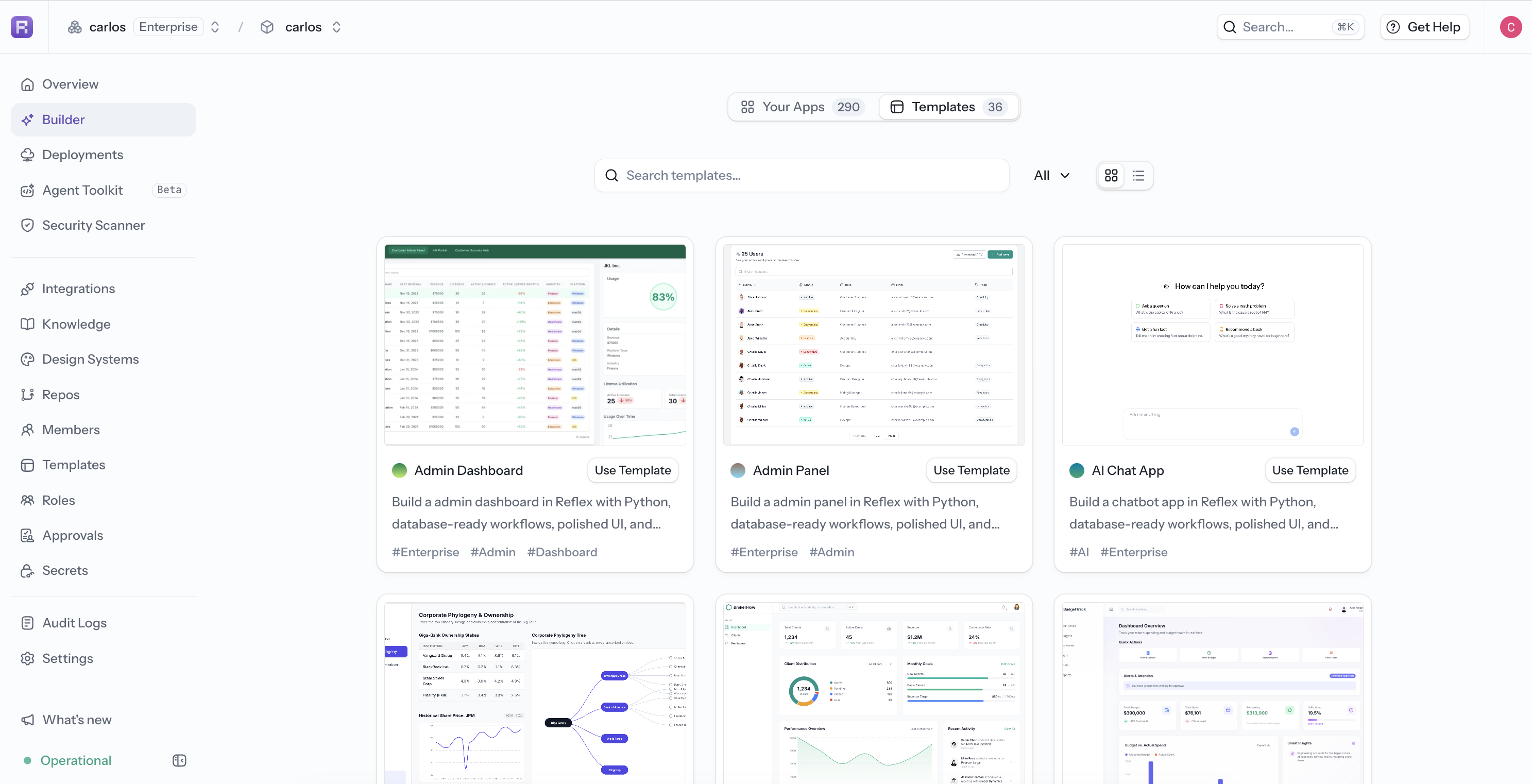
- Open Builder and select the Templates tab.
- Review the available templates and select Use Template.
- Open the copied app and prompt the agent to replace the template's sample content and data.
Choose a template whose structure is close to your intended app. It is usually faster to change content, styling, and one or two workflows than to reshape an unrelated template.
Open a template's details to explore related templates without returning to the full gallery. This is useful when the first result has the right use case but the wrong layout or visual style.
Save an App as a Template
If your role allows it, open the app's Settings and use Save as Template. Give the template a clear name and description so teammates understand when to use it.
Before saving, remove credentials, personal data, and app-specific content. Keep representative sample data and instructions that make the starting point easy to understand.
Team Templates
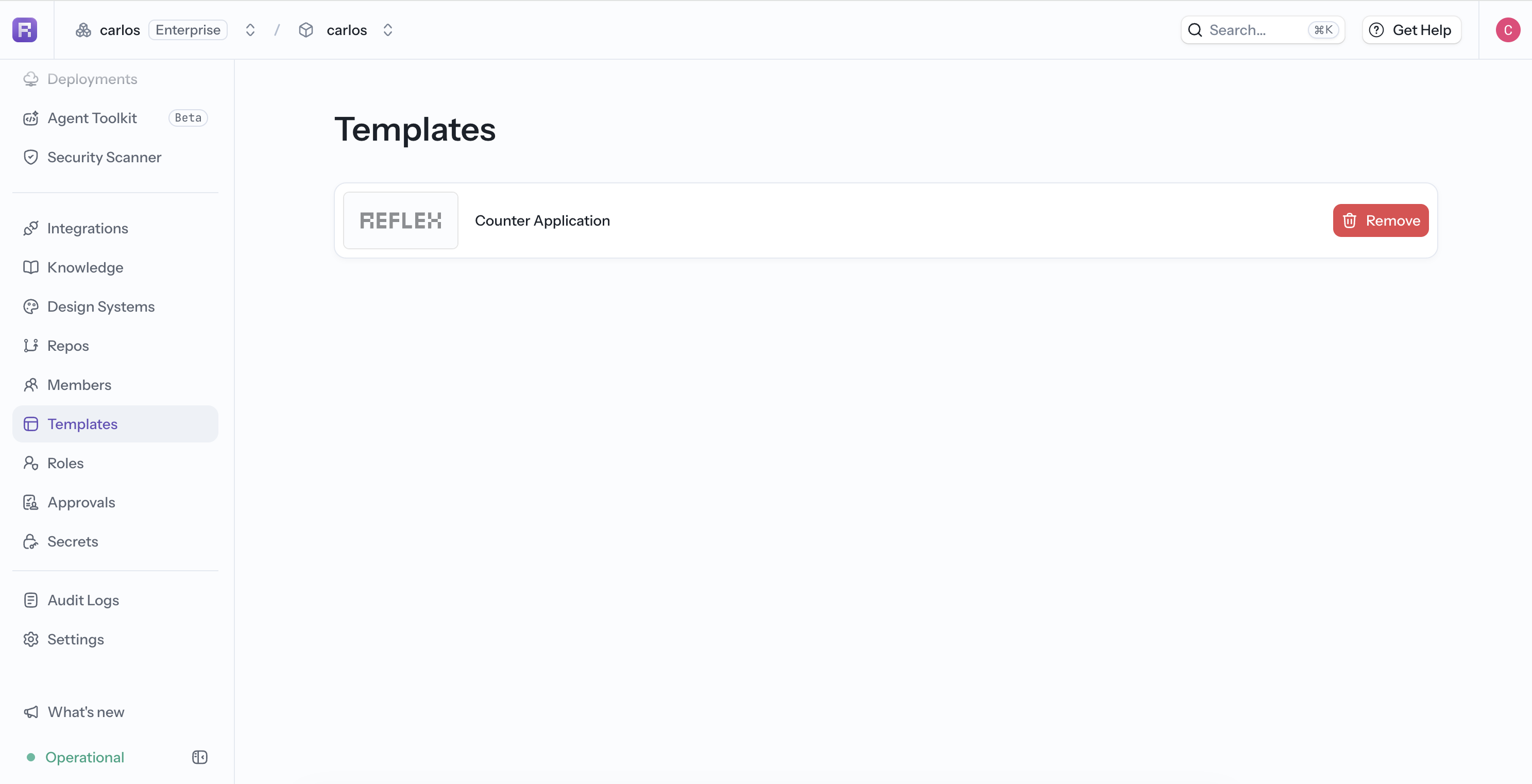
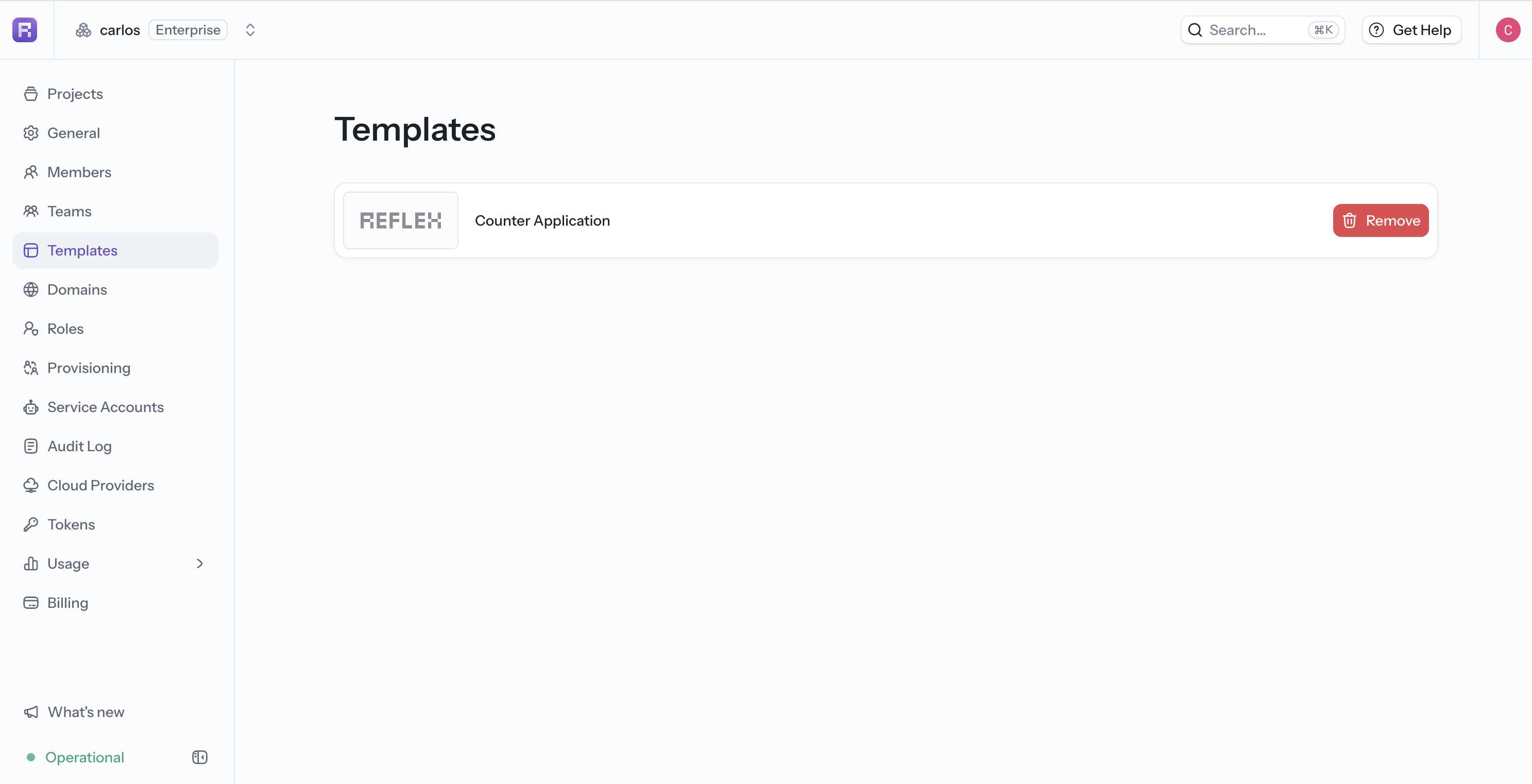
Templates can be shared at the project or organization level:
- Use Templates in the project sidebar to manage templates available to that project.
- Use Templates in organization settings to manage templates shared across the organization.
- Start new apps from team templates in the Builder's Templates tab.
Access to create or manage shared templates depends on your organization and project role.