


Managing Project Access
Organization membership lets someone join projects, but not any specific one. You control access per project: who can open it and what they can do. Access can be assigned directly or inherited from the organization or a team.
Manage this from Members in the project sidebar.
Who already has access
Some people have access without being added:
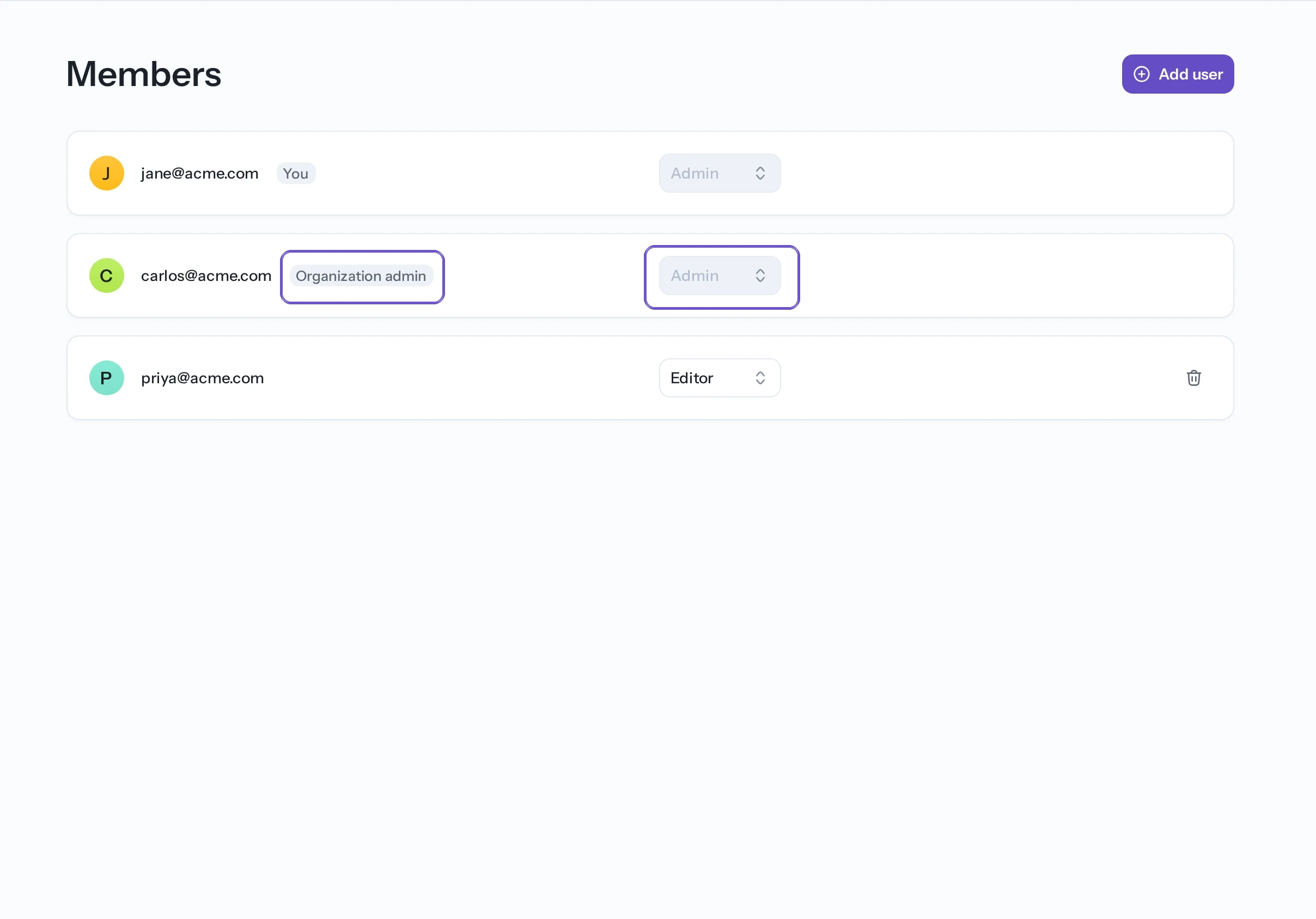
- Organization admins can open every project. They show an Organization admin badge in the member list, and their access can't be changed here because it comes from their organization role.
- Team members inherit the project role granted to their team.
- Managers and members otherwise have no access to a project until you add them directly.
Adding members to a project
Select Add user to open the member picker. It lists organization members who do not already have a direct role. Members with team-inherited access can still appear so you can give them access that remains if they leave the team.
Choose one or more people, assign each a project role, and select Add to project.
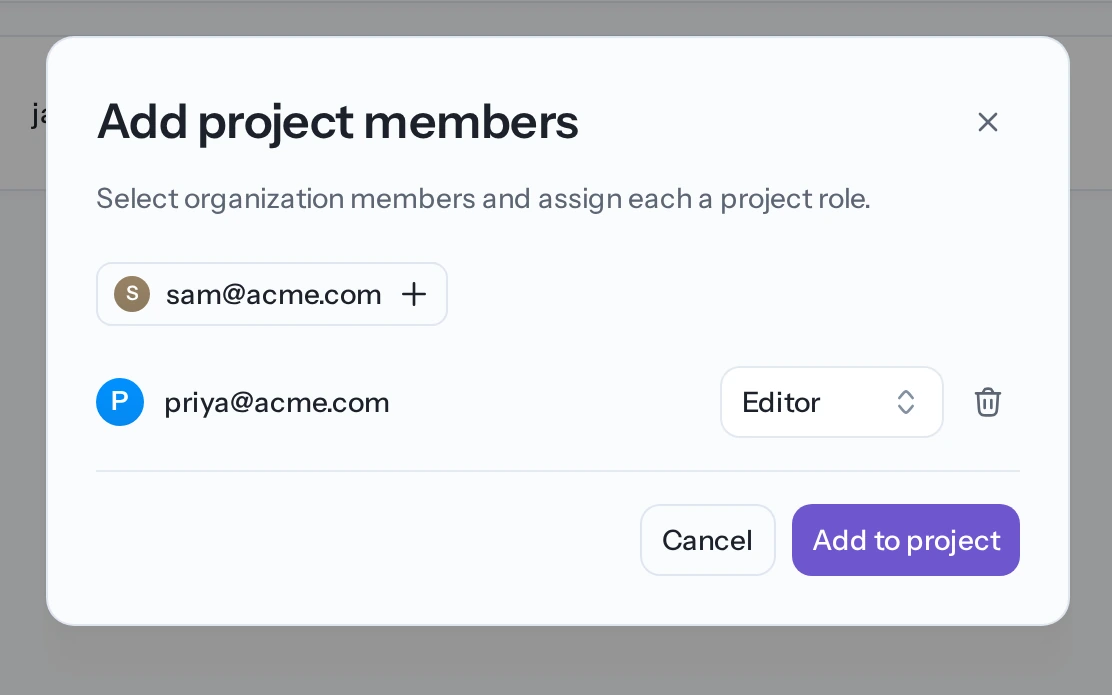
You can only add people who belong to your organization.
Adding a team to a project
Under Teams, select a team to add it as an Editor. You can then change it to Viewer, Editor, or a non-Admin custom role. Every member of the team inherits that access.
Manage the team's members from Teams in the organization sidebar. Keep direct member assignments for exceptions that should not apply to the whole team.
Changing a member's project role
Each member has a role dropdown next to their name. Pick a new role to change their access.
You can't change the following access here:
- Your own role, so you can't lock yourself out.
- Organization admins, whose access is inherited from the organization.
- Team-inherited access, which must be changed on the team assignment rather than the individual member.
Assigning project roles requires the project Admin role or organization admin.
Viewing effective permissions
Select View effective permissions for a member to see what they can do right now, including permissions inherited from the organization or a team.
Use this view when a member's direct role does not fully explain their access. It helps distinguish direct, team-inherited, and organization-inherited permissions before you remove or downgrade an assignment.
Removing a member from a project
Select the delete icon next to a directly assigned member and confirm. They lose that direct assignment but remain in the organization and keep access to their other projects.
If they still inherit access from an organization role or team, removing the direct assignment will not remove all project access. Check View effective permissions first.
To remove someone from the organization entirely, use the organization's Members tab instead (see Members & seats).
Related
- Roles & permissions — what each project role can do.
- Teams — grant project access to a group.
- Custom roles — define a role with specific permissions.