


Members & Seats
An organization's members are the people who can work in it. Once someone is a member, you can add them to specific projects.
Manage members from Members in the organization sidebar.
Seats
Each member uses one seat. A pending invitation also holds a seat until the person joins or you revoke it.
The Members tab shows how many seats are in use, such as 4 of 10 seats used. When seats run out, remove a member, revoke an invitation, or add seats to your plan.
Adding a member
Select Add member, enter an email address, and choose the organization role the person should have.
For a Member, Manager, or custom organization role, you can also select one or more projects and assign a project role for each one. Organization admins already inherit Admin access to every project, so the project picker is hidden for them.
- If they already have a Reflex account, they're added right away.
- If they don't, Reflex emails them an invitation, and they join once they sign up.
Pending invitations
Invited people who haven't joined appear under Pending invitations, with the role they'll receive. Each pending invitation holds a seat until it's accepted.
To withdraw an invitation, select it and choose Revoke. You can re-invite the person later.
Awaiting a seat
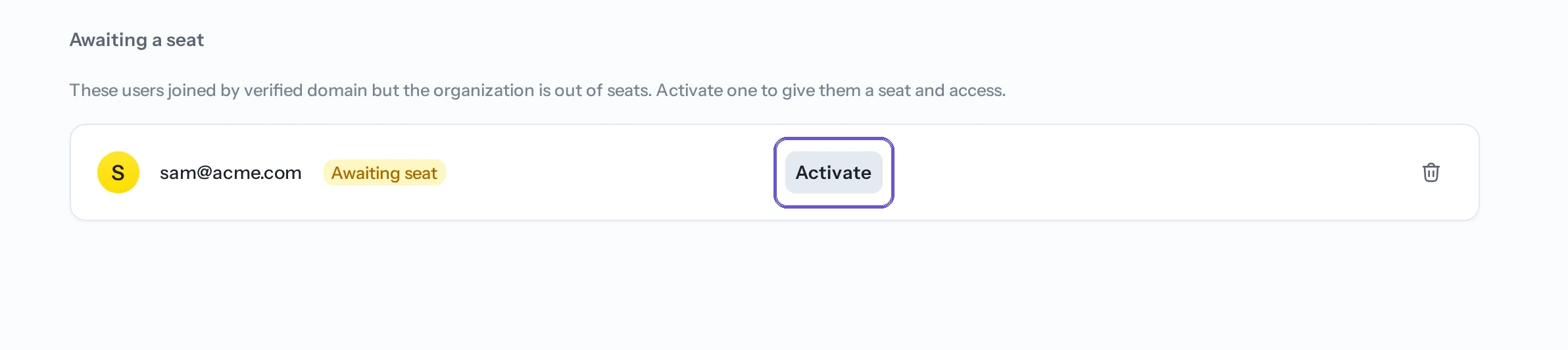
With verified domains, people whose email matches your domain join automatically. If the organization is out of seats when that happens, they go into an Awaiting a seat queue.
Queued people hold no seat and have no access. When a seat frees up, select Activate to admit them.
Changing a member's role
A member's organization role appears next to their name. Pick a new role from the dropdown to change it. See Roles & permissions for what each role can do.
You can't change your own role; ask another admin if it needs to change.
Adding a member to projects
Open a member's actions and select Add to projects to grant direct access to one or more projects. Assign the appropriate project role for each project.
For groups that need the same access, add members to a team and grant the project role to the team instead.
Before adding a direct role, review the member's effective permissions to avoid duplicating access inherited from a team or organization role.
Revoking active sessions
Use Revoke active sessions when a member should be signed out everywhere in the organization, for example after a lost device or suspected account compromise. Their membership and roles stay unchanged, and they can sign in again.
Removing a member
Select the delete icon next to a member and confirm. They lose access to the organization and all of its projects. You can add them back later.
Maintaining an organization admin
An organization always needs at least one admin. If you are the only admin, Reflex prompts you to Hand off admin access before you can leave the organization. Promote a trusted member, confirm that they can administer the organization, and then leave if needed.
Related
- Roles & permissions — what each role can do.
- Managing project access — add members to projects.
- Teams — manage inherited project access for groups.
- Provisioning — synchronize membership through SCIM.
- Verified domains & auto-join — automatic joining by email domain.