


Azure Auth Integration
Legacy integration. New connections use the Microsoft Entra ID card instead: selecting Azure Auth in Reflex Build opens it. This page is for projects that already have an Azure Auth connection.
The Azure Auth Integration allows your app to authenticate users through Microsoft Entra ID (formerly Azure Active Directory). This integration provides secure OAuth 2.0 authentication and supports multi-tenant applications with customizable tenant access.
Step 1: Set Up Azure App Registration
Before connecting, you need to register your app in the Microsoft Entra admin center:
1 - Go to the Microsoft Entra admin center → Entra ID → App registrations
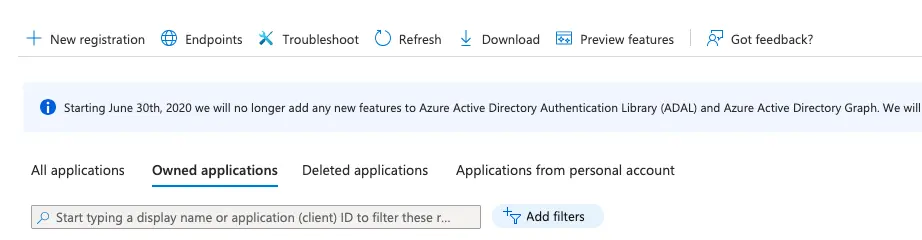
2 - Click New registration as shown in the image below:
3 - Register your app. Ensure that for the Redirect URI you select Web and enter the redirect URI shown on the Azure Auth connection in Reflex Build, which has this form:
https://{your-sandbox}/_reflex_oidc_azure/authorization-code/callback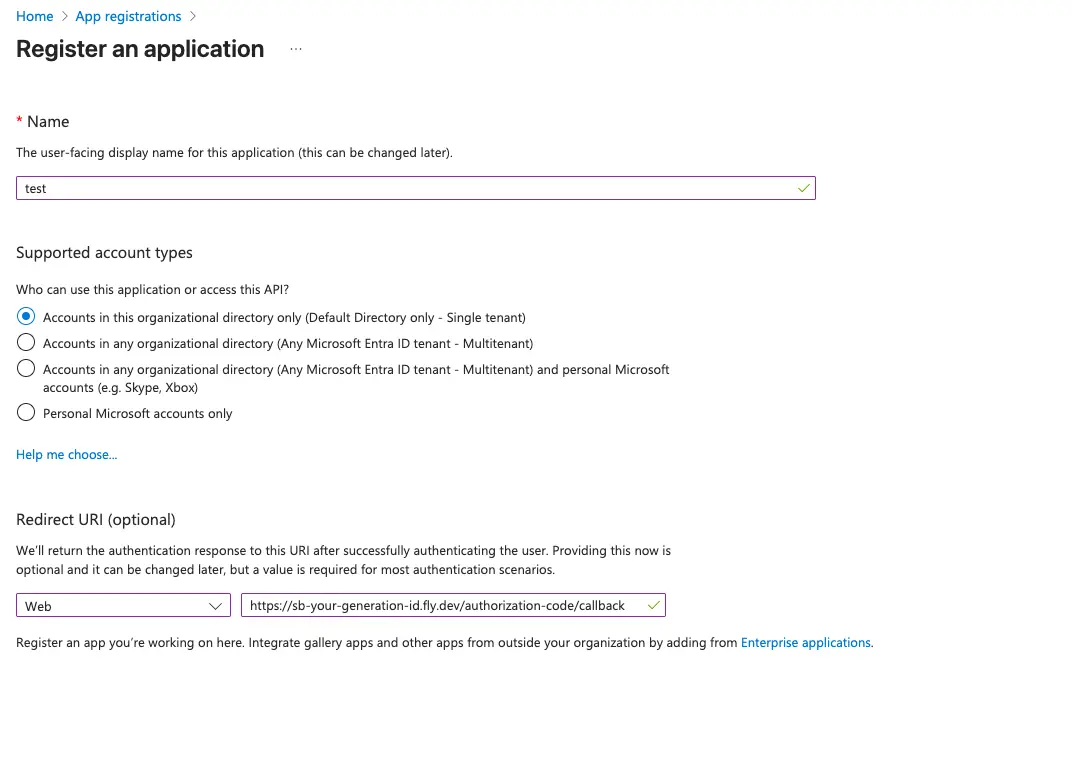
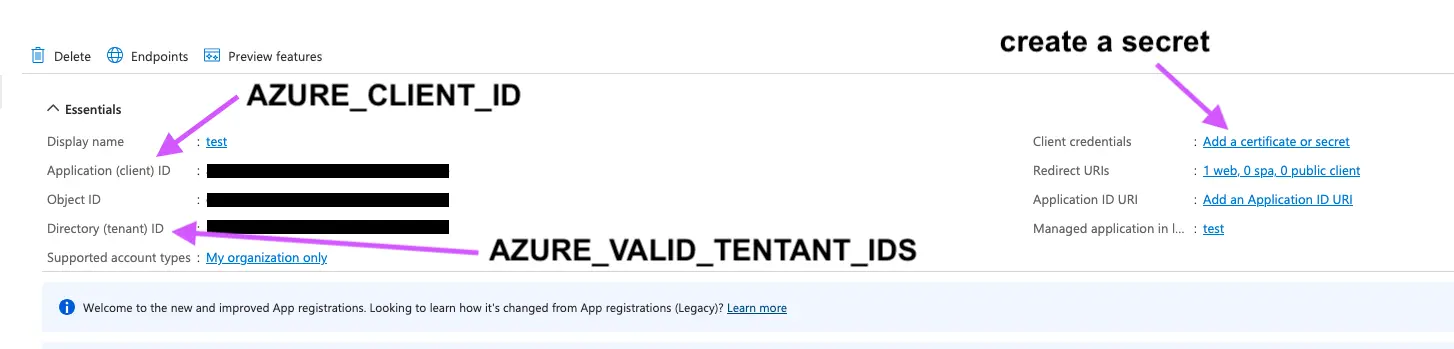
4 - On the next page get your client_id (AZURE_CLIENT_ID) and tenant_id (AZURE_VALID_TENANT_IDS) from the Overview tab. To accept personal Microsoft accounts instead of a specific directory, use consumers as AZURE_VALID_TENANT_IDS; that requires registering the app for personal Microsoft accounts.
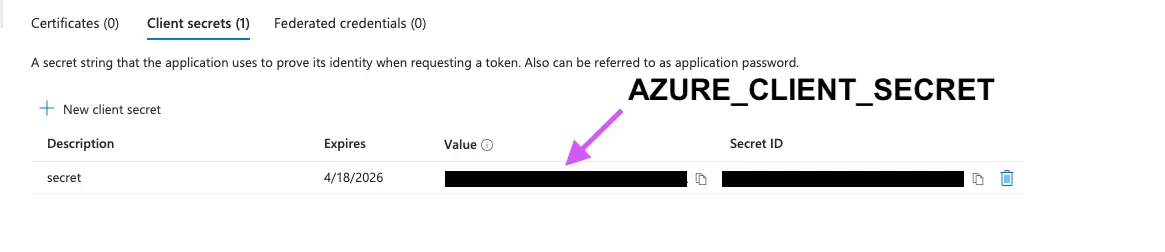
5 - Next go to Certificates & secrets → Client secrets, click New client secret, then Add, and copy the generated secret Value, not the Secret ID (AZURE_CLIENT_SECRET). It is only shown once.
Step 2: Configure the Integration
- In Reflex Build, open the Integrations tab and select your existing Azure Auth connection.
- Fill in the credential fields:
- AZURE_CLIENT_ID: your Application (client) ID
- AZURE_CLIENT_SECRET: your client secret value
- AZURE_VALID_TENANT_IDS: your tenant IDs (comma-separated), or
consumers - Click Save Changes.
Your app can now authenticate users through Microsoft Entra ID with a secure OAuth 2.0 flow.